-
Help Topics
Expand all | Collapse all


Anthropic Claude
This instruction applies to Anthropic Claude website, or desktop. You may need to have a Pro level subscription or above*.
To link Teapplix, go to Claude "Customize" page, then go to Connectors:
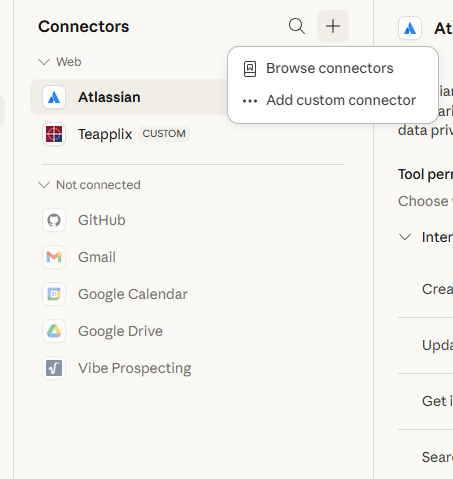
Click on "Add custom connector":
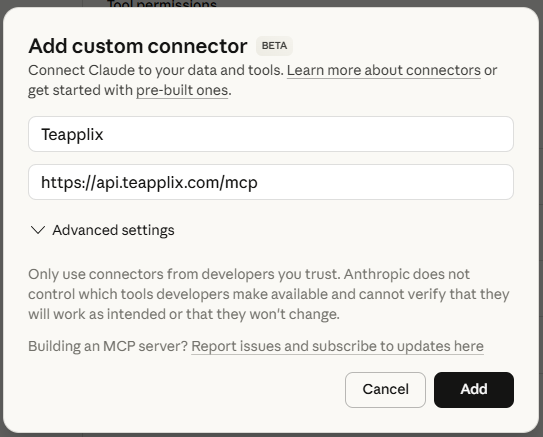
Name your connector Teapplix - xxxx where xxxx is your account name
Remote MCP server URL: https://api.teapplix.com/mcp
No need to fill the advanced section, click on Add. Now you have added Teapplix MCP to your claude account. You can start asking questions and perform operations.
When you use Teapplix connector for the first time, or monthly thereafter, you will be asked to authorize the connector, just follow the screen and login to your Teapplix account and confirm access.
Access Teapplix from Claude Code CLI
Claude Code CLI
If you use Claude Code cli, to add Teapplix MCP server, on command line type
claude mcp add --transport http teapplix https://api.teapplix.com/mcp --header "X-Teapplix-API-Token: xxxx-xxxx-xxxx"
where xxxx-xxxx-xxxx is your Teapplix API Token (obtain on Teapplix Settings -> API page)
Notice, unlike desktop where Teapplix API token is never given to you and monthly re-auth is required, the link to claude code permanently stores your Teapplix REST API token on the machine where you are running claude code. So be careful with security considerations and do not do this on a shared computer.
To verify that Teapplix is linked successfully, run on command line:
claude mcp list
You will see something like:
Checking MCP server health…
teapplix: https://api.teapplix.com/mcp (HTTP) - ✓ Connected
*The level of claude subscription required to add custom connectors is best we can determine and subject to change. It is best to verify with Anthropic