The Incredibly Simple Tesla Model 3 Reservation Page

If you are an e-commerce seller, you should take a look at the Tesla Model 3 reservation page and benchmark it against your own site checkout page.

We have captured a screen shot below:

tesla

It literally has no delay when you enter your credit card and push the reserve button. In addition, it seems that they have really worked to simplify what they ask you to complete process:

  • You don't have to check a check box to "I agree to terms", it is simply a line above the "Reserve" button
  • There is no page to display "cart details", simply, the original button to enter the page shows "Reserve for 1000", and here on the page you can change quantity from 1 to 2 and the price changes next to the quantity.
  • Country and State is auto detected
  • Only the expiration date shows an inline format prompt. You just enter the date based on the format, on many devices it seems to be easier to do than drop down selections or worse, calendar widgets.
  • It seems to adopt "label line above entry box" design

I am sure everybody in ecommerce can check the design and maybe learn a thing or two from it. We certainly did.

Posted in E-Commerce, Howto | Comments Off on The Incredibly Simple Tesla Model 3 Reservation Page

QuickBooks Desktop REST API Deprecation has no impact on Teapplix

You may have heard or gotten email announcement from Intuit, that starting March 1st, 2016, Intuit will discontinue support for the QuickBooks Desktop REST API.

This change does not affect Teapplix and our QuickBooks Integration products. Teapplix utilizes "QuickBooks Desktop SDK and the QuickBooks Web Connector". This will continue to be supported as per Intuit.

To integrate Teapplix with your Desktop QuickBooks (Windows version, Pro Premier and Enterprise, Point of Sale), install Web Connector from this link.

Posted in Howto, QuickBooks Integration | Comments Off on QuickBooks Desktop REST API Deprecation has no impact on Teapplix

Enhanced automatic order filters

Just like an outlook email system, you can filter orders coming into Teapplix, and move qualified orders to Queues automatically.

To set this up, see the below link:

https://www.teapplix.com/help/?page_id=2336

Posted in Howto, Site Updates | 167 Comments

InventoryAdvisor® PickList Enhancements

If you turned on our InventoryAdvisor® product, you will notice some recent enhancements in our "PickLists". We have added 2 columns: "Quantity Available" and "Quantity Short".

Quantity Available is what you have on hand, not shipped out. This number will display if you entered your inventory quantity from our "Quantities" page.

Quantity Short will be displayed if your Quantity Available isn't enough to cover the orders in the batch.

These 2 columns give you an immediate view of what your stock level is in relation to your order. You can spot potential issues with fulfillment before generating shipping labels.

InventoryAdvisor® is a Teapplix optional subscription component that helps you track & manage inventory levels across multiple marketplaces. More information can be found in Advanced InventoryAdvisor® Help.

The PickList changes will only be visible if you turned on InventoryAdvisor®. If you have customized your PickList previously, you must "revert back to factory default" on the PickList.cs template under Setup => Packing Lists => Advanced.

Posted in Howto, Site Updates | 173 Comments

Duplicate orders in QuickBooks

If you notice that sometimes, you are getting duplicate orders exported to QuickBooks, please check your Internet connection and make sure the export completes without error.

The way Teapplix export orders to QuickBooks:

1) send a batch of orders to QB for export
2) receive from QB confirm that these orders are exported, with sales number
3) record that these orders are exported

Under one scenario, Internet connection is lost between QuickBooks and Teapplix after 1). When this happens, QuickBooks tries to send confirm to Teapplix for a few minutes, and then gives up.

This will cause Teapplix to not know that this batch of orders (up to 100) is alreay exported. Next time, Teapplix will re-export the same orders, even though during the first try these orders have already been exported.

To avoid this, make sure your internet connection is solid. If you are exporting orders to QuickBooks for shipping, it's best to watch the export complete and make sure no error happens. If you run into an error that cause an order to be in QuickBooks but still in "Unexported orders" queue in Teapplix, you should remove that order from Teapplix export queue.

Posted in Howto, QuickBooks Integration | Tagged , | 4,106 Comments

How to link your Magento shopping cart to Teapplix

http://www.teapplix.com/forum/viewtopic.php?f=1&t=76

Posted in Howto, Site Updates | Tagged , | 45 Comments

How to link your Volusion shopping cart to Teapplix

To integrate with Volusion shopping cart, Teapplix requires Volusion API access. Currently the API access is only available with a Gold or above level Volusion plan.

To integrate with Volusion, follow these steps:

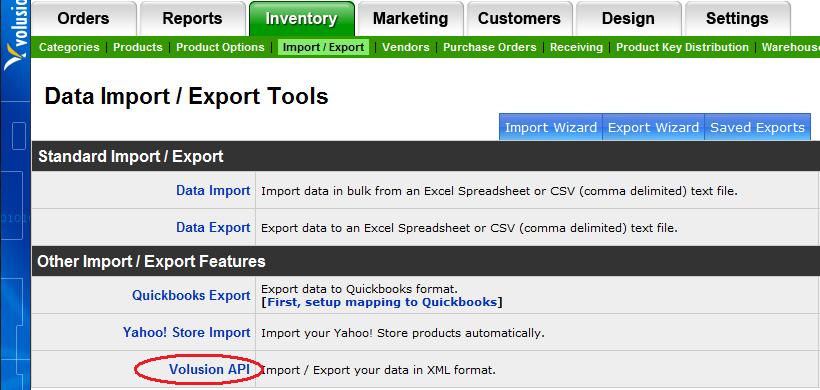
  1. Login to Volusion admin area, and go to Inventory => Import Export:
    Inventory => Import / Export
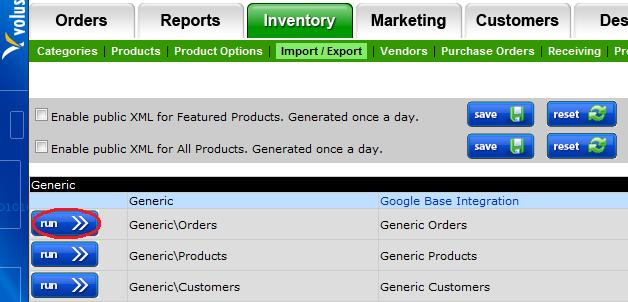
  2. Select Volusion API:
    Generic
  3. Select "Generic\Orders":
    Generic Orders
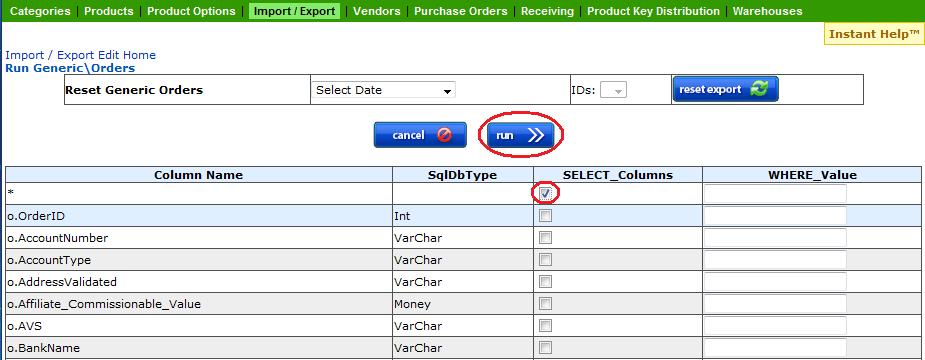
  4. Check the first check box => all columns * (make sure nothing else is checked):
    Check *
  5. Scroll down to o.OrderStatus, and fill in the box WHERE_Value with the Order Status you want to export. (make sure you don't check the checkbox)
    Order Status Selection
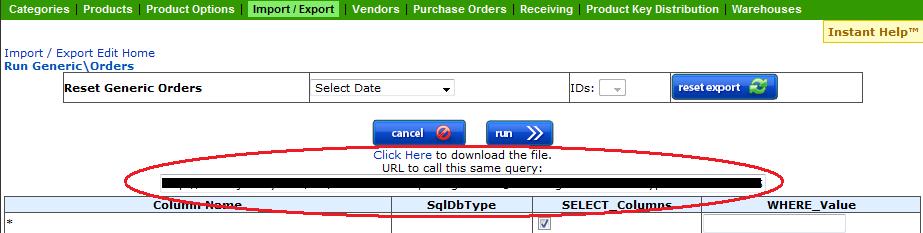
  6. Click Run on top and copy & paste the URL into Teapplix shopping cart configuration. You can download the order report to import to Teapplix if you want to see your order immediately.
    URL and Order Download
Posted in Howto | Tagged , | 170 Comments

Zebra ZP450 Thermal Label Printer

Zebra ZP450 If you print a lot of shipping labels, your best bet is a thermal label printer. Most of our customers use Zebra 2844 thermal printer. I had a chance to visit a customer who just acquired a new Zebra ZP450 printer. This printer isn't much bigger than the 2844, just a little taller. Watching it print is a religious experience. Compared to 2844, it is much much faster. We tried a batch from Teapplix integrated with DaZzle. 136 labels in less than 5 minutes. Customer told me the same batch in 2844 will be 40+ minutes.

Well worth it if you are buying a thermal. And the amazing thing is, ZP450 isn't much more expensive (new) than a 2844!

Posted in Howto | Tagged , , | Comments Off on Zebra ZP450 Thermal Label Printer

QuickBooks and Sales Tax

In QuickBooks, there are multiple levels of control on taxable vs non taxable transactions. We list the settings in the order of "precedence" -> settings listed earlier will completely override later ones:

  • Customer taxable or not - if a customer is not taxable, no tax will show up
  • Sales tax item used on the receipt - If this rate is 0, tax will be 0
  • Item taxable or not - controls if the item price will be included in the taxable amounts

If you use Teapplix QuickBooks Integration, we control tax by flipping the customer taxable status on the Sales Receipt or Sales Order.

Teapplix uses QuickBooks to calculate the amount of tax. To make sure your sales receipt total matches that of your actual order, make sure you select the right Sales Tax Item in Teapplix Integration Setup.

This selected tax item must have a rate that matches your marketplace and shopping cart tax rate. If you have 2 separate tax items, one represent state tax, one represent local tax, you need to create a third item, of type "Tax Item Group", that combine both tax rates to get the proper total tax.

For each exported order, Teapplix will either set the customer taxable status to non, if no tax is charged, or tax, if sales tax are included in the order.

What you need to insure for sales tax to work correctly is that your items have the correct "taxable" status. Most physical goods sold on eBay & Amazon should be taxable.

It is also important that you review with your accountant if "Shipping & Handling" is taxable.

Note that the discount used to represent PayPal, Amazon and eBay fees must be "non-taxable". These are taken out after tax calculation is made.

Amazon
For Amazon orders, Teapplix may not record the proper taxable status if Amazon does not charge sales tax for you.

Buy.com
For Buy.com, Teapplix do not import the tax amount in the sales receipt. So all taxes will be recorded as non-taxable out of state. This is due to Buy.com handling the tax collection and filing for you.

States with multiple tax rates
If you are in a state that has multiple tax rates, Teapplix can only apply one tax rate to your orders. You may need to edit the exported orders and change the actual tax item that applies.


Posted in Howto, QuickBooks Integration | Tagged , , , , , | 1 Comment

What does RMA links do?

RMA link brings you to a page to create a copy of an order. The new order will be called "RMA-orderid" and will be in the Open Orders list. It is intended for shipping out replacements for defective, lost or missing items.

You can ship the RMA order, or you can put the RMA order on hold if you need to wait for returns to come in. You can put a note on the order about why it is on hold.

Hold orders are in Hold queue. They are not visible in the Open Orders list. From Hold list, you can generate postage paid USPS / UPS return shipping labels to send to customers for the return shipment. Make sure you check your Hold queue from time to time. Once you get the return, click on "options" and change the order back to normal queue and it will be back in Open Orders list ready to be shipped out.

Posted in Howto | Tagged , , | 162 Comments